發表文章

目前顯示的是有「Windows」標籤的文章

Windows 10 Fix - "We Can't Sign Into Your Account" error message

圖片
Windows 10 Fix - "We Can't Sign Into Your Account" error message When sign in Windows will get "We Can't Sign Into Your Account - this problem can often be fixed by signing out of your account and then signing back in" error message Solution:       1. Run CMD and type "whoami /user" to get your using SID         2. Run regedit go to  "HKEY_LOCAL_MACHINE\SOFTWARE\Microsoft\Windows NT\CurrentVersion\ProfileList" Select your SID and click "ProfileImagePath" change to collect path e.g. d:\users\yourname      3. Go to C:\users\yourname folder right click select properties -> Security -> Advanced -> change Owner to yourname and select "Replace all child object permission entries with inheritable permission entries from this object" -> click OK     4. Restart PC & Sign in again

Windows 10 Installation Issue "Can't install Windows on GPT drive"

Windows 10 Installation Issue "Can't install Windows on GPT drive" Use MBR2GPT.EXE to convert a disk from the Master Boot Record (MBR) to the GUID Partition Table (GPT) partition style without modifying or deleting data on the disk. Boot to CMD 1. Boot from the installation device (USB or DVD). 2. Once you reach the "Install" page. Immediately press and hold  SHIFT KEY + F10 KEY.  This will open command prompt (The black box DOS program). 3. Once the Command Prompt is open, proceed to type the following command line. Find disk number use diskpart command ( e.g. disk:0 ) Type  diskpart  and then hit enter. This will enable command prompt to enter disk partitioning mode. Now type  list disk  and then hit enter. You will then see a list of disk drives. after fund the disk number which you want to convert type exit to exit the diskpart mode. type following command to convert the disk type mbr2gpt /convert /disk:0

Windows 7 通知區域裡部份「圖示」消失或不能顯示

圖片
 Windows 7 通知區域裡部份「圖示」消失或不能顯示 1. Run "regedit.exe"  2. Go to following key "HKEY_CURRENT_USER\Software\Classes\Local Settings\Software\Microsoft\Windows\CurrentVersion\TrayNotify" 3. Delete 「IconStreams」and 「PastIconsStream」這兩項登錄資料,刪除完之後就可以關閉登錄編輯程式。 4.  Reboot Windows or relaunch explorer.exe.

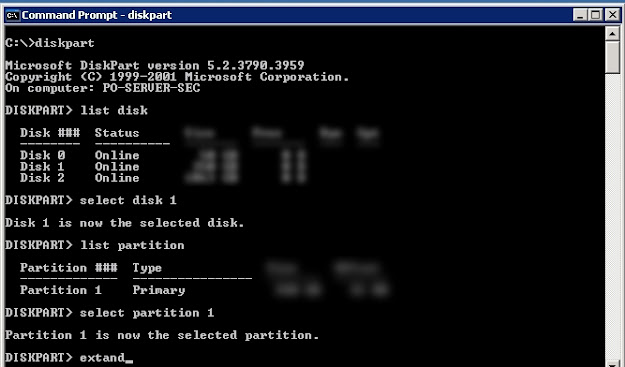
如何在Windows server 2003 下擴展(擴增)磁碟分割區容量 \ How to use diskpart.exe command extend partition size on Windows server 2003

圖片
如何在Windows server 2003 下擴展(擴增)磁碟分割區容量 \ How to use diskpart.exe command extend partition size on Windows server 2003 解決方法/Solution :   使用 Windows 本身內建的程式 diskpart.exe 此工具可讓您使用命令提示字元的指令來管理,磁碟、磁碟分割或磁碟區。 Run CMD to command prompt and then type following command: diskpart DISKPART> list disk  (list your disk number) DISKPART> select disk 1  ( "disk 1" is the number of disk you want to extend) DISKPART> list  partition  DISKPART> select partition 1 ( "partition 1" is the number of partition you want to extend) DISKPART> extend  DISKPART> exit p.s. extend command without any parameter will default extend the maximum available free space to use, if you not want use all the free space you can define the size with parameter "size={number}" i.e.  extand size=20000 After finish type "exit" enter to exit diskpart. Reference: 使用diskpart來擴增磁碟分割區容量(適用於2000,xp,win2003  https://blog.xuite.net/ganpin917/home/44007001-%E4%BD%BF%E7%94%A8diskpart%E4...

Windows 10 突然無聲解決辦法 - Windows 10 no sound (Audio disabled) (no sound and speaker volume icon show disable) problem solution

Windows 10 Audio disabled (no sound and speaker volume icon show disable) problem 1.           In Device Manager from the menu. 2.           In Device Manager, expand Other Devices Intel High Definition Audio. 3.           Press View and then select Devices by connection. 4.           Expand ACPI x64-based PC. under              -   Microsoft ACPI-Compliant System                -   PCI Express Root Complex                   -   Intel(R) Smart Sound Technology (Intel(R) SST) Audio Controller  Select "Intel (R) Smart Sound Technology (Intel(R) SST)…" 5.           Right click mouse button and select Uninstall. à ...

Windows 7 開不了機藍畫面的解決辦法 / Windows 7 cannot boot show blue screen with error message "STOP 0x0000007B"

Windows 7 開不了機藍畫面的解決辦法 Windows 7 cannot boot show blue screen with error message "STOP 0x0000007B" Symptoms:  Cannot Boot to Windows(Auto reboot) show blue screen with following error message: (Blue screen with following error message)  STOP 0x0000007B INACCESSABLE_BOOT_DEVICE BSOD: 0x0000007b (0x80786B58, 0xC0000034, 0x00000000, 0x00000000) Solution: Use Windows PE bootdisk or remove hard disk and put to other PC  Edit following register key value from 3 to 0. HKEY_LOCAL_MACHINE\System\CurrentControlSet\Services\Msahci HKEY_LOCAL_MACHINE\System\CurrentControlSet\Services\IastorV HKEY_LOCAL_MACHINE\System\CurrentControlSet\Services\iaStor In the pane on the right side, right-click  Start  in the  Name  column, and then click  Modify . In the  Value data  box, type  0 , and then click  OK . On the  File  menu, click  Exit  to close Registry Editor. How to access and edit another ha...

進入 Computer Management 加使用者權限不需登出原有account

進入 Computer Management 加使用者權限不需登出 Click "Run" from Start menu. or press the shortcut key [Windows]+[R] and press enter. 係執行輸入幾下指令: 1.) runas /user:administrator cmd Enter the password for administrator 2.) type "compmgmt.msc" enter you can now enter Computer Management with admin user with out log out current account.

Windows XP 使用的最後版本瀏覽器 (轉載)

 Windows XP 使用的最後版本瀏覽器 (轉載)    轉自:  https://123.briian.com/forum.php?mod=viewthread&tid=8418 Google  Chrome v49 下載   49.0.2623.112_chrome_installer.exe   (42.92 MB) Opera 36.0.2130.80 下載: 按這裡 Mozilla Firefox  v52.0 下載: 按這裡 IE8 下載: 按這裡

Windows update cannot check for updates because the service is not running Windows 7 / Windows Update 不能檢查更新

Windows update cannot check for updates because the service is not running Windows 7 / Windows 7的 Windows Update 不能檢查更新 1)Remove your Windows Update history and restart the Windows Update service 2) Type services.msc and click OK. 3) Find and right-click on Windows Update and select Stop. 4) Delete under "C:\Windows\SoftwareDistribution" All subfolders. 5) Run "CMD" and Enter following commond: regsvr32 wuapi.dll regsvr32 wuaueng.dll regsvr32 wups.dll regsvr32 wups2.dll regsvr32 wuwebv.dll regsvr32 wucltux.dll 6) Find and right-click on Windows Update and select Start. 7) Restart your computer and try to perform Windows Update on your Windows to see if it works. 轉載自( https://www.drivereasy.com/knowledge/windows-update-cannot-currently-check-for-updates-solved/ )

How to Replace Motherboard without Reinstalling Windows / Fix Windows cannot boot after replace motherboard. (換底板不用從新安裝Windows)

How to Replace Motherboard without Reinstalling Windows  Windows 7 (轉載自):  https://www.wintips.org/how-to-replace-motherboard-without-re-installing-windows/ 1.Run “regedit” and press Enter. 2. Inside Windows Registry, navigate (from the left pane) to this key:  HKEY_LOCAL_MACHINE\SYSTEM\CurrentControlSet\services\msahci * Note: If you have Window 8, Windows 10 & Server 2012, then navigate to the “StorAHCI” key (e.g. : “HKEY_LOCAL_MACHINE\Repair\ControlSet001\services\storahci”) , because in these Operating Systems the MSAHCI has been replaced by StorAHCI. 3. At the right pane double click at 'Start' DWORD value and change its value data to 0 (zero). Click OK when finish. 4. Now perform the same modification to this key: HKEY_LOCAL_MACHINE\SYSTEM\CurrentControlSet\services\pciide 5. At the right pane double click at 'Start' DWORD value and change its value data to 0 (zero). Click OK when finish. 6. If you use RAID  ...

使用Net指令處理使用者與群組

使用Net指令處理使用者與群組 net user #查詢本機中所有使用者 net localgroup #查詢本機中所有群組 net user user1 123456 /add #新增使用者user1 密碼123456 net user user2 * /add #新增使用者user2 密碼* #這個意思是新增使用者user3之後在另外輸入密碼,但密碼不會顯示在螢幕。 net user user1 password 12345/add #修改使用者密碼 net user user1 /del #刪除使用者 net localgroup group1 /add #新增群組 net localgroup group1 /del #刪除群組 net localgroup group1 user1 /add #新增使用者到群組 net localgroup group1 user1 /del #刪除群組中的使用者

Windows常用命令集(cmd) (轉載自James LAB)

Windows常用命令集(cmd) (轉載自 James LAB ) 查詢系統資訊 systeminfo 查詢遠端電腦系統資訊 systeminfo /s {Remote IP} 查詢網路卡實體位址 getmac 查詢遠端電腦網路卡實體位址 getmac /s {Remote IP} 查詢已安裝驅動程式 driverquery 列出目前工作項目 tasklist 中止運行中的工作 taskkill /PID 電腦管理 compmgmt.msc 本機使用者與群組 lusrmgr.msc 使用者帳戶控制 (UAC) control nusrmgr.cpl or control userpasswords 使用者帳戶 ( 自動登入 ) control userpasswords2 or netplwiz 控制台 control 系統管理工具 control admintools 資料夾選項 sontrol folders 工作排程器 control schedtasks 印表機 control printers 系統內容 sysdm.cpl 防火牆設定 firewall.cpl 螢幕解析度 desk.cpl 電源選項 powercfg.cpl 網路連線 ncpa.cpl 小畫家 mspaint Power Shell powershell Windows Updte wuapp 網路裝置設定 netsh

Windows Server run backup fail and prompt "Error returned while creating the volume shadow copy:8004230f" message

Windows Server run backup fail and prompt  " Error returned while creating the volume shadow copy:8004230f" message To resolve this issue, follow these steps:  Click  Start , click  Run , type  cmd , and then click  OK . Type the following commands at a command prompt. Press ENTER after you type each command. cd /d %windir%\system32 Net stop vss Net stop swprv regsvr32 ole32.dll regsvr32 oleaut32.dll regsvr32 vss_ps.dll vssvc /register regsvr32 /i swprv.dll regsvr32 /i eventcls.dll regsvr32 es.dll regsvr32 stdprov.dll regsvr32 vssui.dll regsvr32 msxml.dll regsvr32 msxml3.dll regsvr32 msxml4.dll Note  The last command may not run successfully.

Windows cannot get IP address with DHCP and DHCP Client service cannot start up with "Error 5: Access is Denied" message

Windows cannot get IP address with DHCP and DHCP Client service cannot start up with "Error 5: Access is Denied" message 1.) RUN--> regedit 2.) Edit windows registry: "HKEY_LOCAL_MACHINE\SYSTEM\CurrentControlSet\Services\Dhcp" and "HKEY_LOCAL_MACHINE\SYSTEM\CurrentControlSet\Services\TcpIp" Right click it and select Permissions. Select the 'NETWORK SERVICE' and add the  Full control   Select the 'DHCP' and add the  Full control   If not find the DHCP and  NETWORK SERVICE in user list just add it to the list and change to Full control permissions. 3.) RUN command Run cmd and enter following command NET  LOCALGROUP   administrators  "NT Authority\Local Service"   /add netsh winsock reset catalog 4.) Reboot PC Done~ Reference: https://www.wintips.org/how-to-fix-dhcp-service-cannot-start-access-is-denied/

Windows hangs with Blue screen error with "atikmdag.sys" message

Windows hangs with Blue screen error with "atikmdag.sys" message First go to Windows safe mode (press F8 key when restart windows and select Windows safe mode) 1.) Run "services.msc" , change "Themes" service start type to "Stop". or Run "msconfig" command and disable "Themes" service Restart Windows. 2.) After restart it should be back to normal, and go to download and run "Display Driver Uninstaller (DDU)". https://www.wagnardsoft.com/ Download direct link (Display Driver Uninstaller (DDU) V17.0.9.1 ): https://www.wagnardsoft.com/DDU/download/DDU%20v17.0.9.1.exe p.s. If after stop "Themes" service restart Windows it still hangs you can download the "Display Driver Uninstaller (DDU)" on other computer, and save it to USB flash drive and run it on your Windows in "safe mode". 3.) Run "Display Driver Uninstaller" and select  " Clean and restart". after re...

Xeron 影印機 error code 「016-799」/ 異常結束 016-799 解決方法

圖片
方法一: (如果print PDF file 有問題) 係Adobe reader 列印裏面, 取消選擇 " 依PDF頁面大小選擇紙張來源 "。 方法二: https://jerry2yang.wordpress.com/2011/06/29/xeron-c4470-error-code-016-799-%E8%A7%A3%E6%B1%BA%E6%96%B9%E6%B3%95/ (轉載) 解決方法:調整Xeron事務機列印喜好設定,將紙張替換由「印表機預設值」改為「選擇接近尺寸(調整)」。

How to copy all files not include directories to specify the directory (Command)

How to copy all (only)files not include directories In CMD use following command : for /r %f in (*) do @copy "%f" target e.g. want copy all file under c:\test to c:\temp cd\test for /r %f in (*) do @copy "%f" c:\temp p.s. There are spec between in" "(*)" " do .  Within the loop it just copy file into a specified folder(target) "for /r" will walk a directory tree recursively, looking for file names matching the given pattern. Specify the directory to start : for /r FolderA %f in (*) do @copy "%f" target

修復/救 Windows User Profile

修復/救 Windows User Profile (資料轉自: https://www.jinnsblog.com/2015/03/recover-user-profile.html#more-1722 ) 在「 開始 」選單中的→「 搜尋程式及檔案 」欄位輸入「 regedit 」來執行登錄編輯程式,並進入以下路徑: HKEY_LOCAL_MACHINE\SOFTWARE\Microsoft\Windows NT\CurrentVersion\ProfileList 此時你應該會發現在「 S-1-5-21 」開頭的資料夾中有一個是以「 .bak 」結尾。 此時請先把上方的「S-1-5-21-XXXX」給刪掉,然後再把「S-1-5-21-XXXX.bak」重新命名去掉後面的「.bak」,變成「S-1-5-21-XXXX」 接著右邊的「 RefCount 」,並把數值資料改成「 0 」 同樣的,也把「 State 」的數值資料改成「 0 」 最後重新用原本的使用者帳號來登入